How to Make Your Shopify Store ADA Compliant: Step-by-Step Guide
Learn how to make a Shopify store ADA compliant with a clear, step-by-step plan based on WCAG 2.2 AA. Tackle key fixes first, then set up testing and ongoing monitoring.

How to Make Your Shopify Store ADA Compliant: Step-by-Step Guide
Shoppers using screen readers, keyboards, voice control, or low-vision settings should be able to navigate and buy from your store without friction. If you’re asking how to make a Shopify store ADA compliant, this guide gives you a practical, plan anchored to WCAG 2.2 AA. You’ll fix high-impact issues first, then automate monitoring to stay compliant as you scale.
Key takeaways:
- ADA compliance for Shopify maps to WCAG 2.2 AA. Focus on alt text, color contrast, keyboard navigation, form labels, focus states, and error handling.
- Start with theme hygiene: headings, landmarks, contrast, font size, and focus indicators. Use Shopify’s theme editor and custom CSS safely.
- Automate testing with tools, but manually check keyboard traps, focus order, and screen-reader announcements on core flows.
- Add an accessibility statement, a skip link, and a clear Help link. Document fixes and assign QA before every theme or app update.
- Consider an accessibility monitoring app plus periodic audits. Remediation beats overlays alone; use widgets as guardrails, not silver bullets.
H2: What ADA compliance means for Shopify (and what it doesn’t)
ADA Title III requires accessible public accommodations, including ecommerce websites. Courts and settlements in the U.S. typically look to WCAG 2.1/2.2 AA criteria as the technical yardstick. Shopify gives you a strong base, but compliance depends on your theme, apps, content, and custom code.
Compliance is not a one-time switch. Product images, seasonal sections, and new apps can reintroduce barriers. Treat accessibility like performance: measure, remediate, monitor, and re-test during releases. Prioritize user-impacting issues on checkout paths, collection filters, and product media.
Best overall
The strongest all-round choice: complete features, predictable pricing and support that answers quickly.
- Everything most readers need without paying for extras
- Clear pricing with no long lock-in
- Fast, human support during business hours
Best value
The cheapest option we would still recommend — fewer extras, but the essentials are all there.
- Lowest ongoing cost of the shortlist
- Covers the core workflow end to end
- Easy to upgrade later if you outgrow it
Best premium
Worth the step up when volume, compliance or complexity make the cheaper tiers risky.
- Highest limits and deepest integrations
- Priority support with a named contact
- Advanced controls and reporting included
box on the provider’s official site — pricing and terms are updated there first.
H2: Step 1 — Quick ADA triage: fix what breaks the sale
Start where accessibility problems cause abandonment or legal exposure. Use this 90-minute triage to remove blockers on your most visited pages and flows.
- Core flows to test: Homepage → PLP (collection) → PDP (product) → Cart → Checkout → Order tracking → Account pages.
- Assistive tech checks: Keyboard-only, screen reader (NVDA on Windows or VoiceOver on Mac), zoom at 200%/400%, reduced motion enabled, prefers-contrast, dark mode if supported.
Immediate fixes to prioritize:
- Keyboard access: Every interactive element must be reachable and actionable with Tab/Shift+Tab and Enter/Space. Fix off-screen focus, hidden overlays, and mega-menu traps.
- Focus visibility: Ensure a 3:1 contrast focus outline that’s at least 2px. Do not remove outlines without a visible replacement.
- Alt text: Add concise, meaningful alt for product images. Mark decorative images with empty alt. Avoid keyword stuffing, brand slogans, or filenames.
- Forms and errors: Make labels programmatically associated. Add aria-invalid and descriptive error text. Preserve user input after validation.
- Color contrast: Achieve 4.5:1 for body text, 3:1 for large text and UI components. Check buttons, badges, swatches, and sale labels.
triage sign-off buyer guide
Work through these points with each provider before you commit.
- Can a keyboard user add a product to cart, apply a discount, and check out?
- Do modals and drawers trap focus and restore it when closed?
- Are important images and icons described; decorative ones ignored?
- Are color-only signals (e.g., “Red errors”) paired with text and icons?
- Does zoom at 200% avoid horizontal scroll and preserve all actions?
H2: Step 2 — Theme-level accessibility hygiene (the highest ROI)
Your theme is the backbone. Fixing structure and color tokens here pays off across every page.
- Headings: Enforce a single H1 per page. Use descending hierarchy (H2, H3) for sections. Never use headings for visual styling alone.
- Landmarks: Use semantic header, nav, main, aside, footer. Add ARIA landmarks only when native elements can’t be used. Avoid redundant roles.
- Skip link: Add a “Skip to main content” link visible on focus at the top of the page. Target the main region or the first H1.
- Focus order: Mirror the visual order. Reorder DOM or adjust layout so tabbing is predictable, , .
- Link purpose: Use descriptive text for “Shop Men’s Jackets” rather than generic “Learn more”. Avoid duplicate link text pointing to different URLs.
- Color and typography tokens: Centralize variables for colors, spacing, and fonts. Set minimum 16px body text, 1.5 line-height, and adequate letter spacing.
- Motion and parallax: Respect . Provide non-animated fallbacks for Lottie or video backgrounds.
Practical theme changes:
- Add .focus-visible outlines using :focus-visible where supported, with a 3:1 contrast color.
- Ensure dropdowns open on Enter/Space and close with Escape. Set aria-expanded accurately on toggles.
- Replace icon-only buttons with aria-label or visually hidden text. Examples: cart, search, close, hamburger.
- For hero slideshows, pause/stop/hide controls must be reachable and labeled. Don’t auto-rotate faster than a few seconds; allow pause by default.
H2: Step 3 — Product media: alt text, galleries, zoom, and variants
Product media is your revenue engine, so tighten accessibility on images, video, 3D models, and variant swatches.
- Alt text principles:
- Product hero: Describe the product and key attributes visible (e.g., “Black leather tote with gold hardware, 15-inch laptop pocket”).
- Context-aware: Avoid repeating nearby product title; add differentiators like angle, texture, use-case, or fit.
- Decorative: Background flourishes and spacer images use empty alt.
- Avoid SEO stuffing. Screen-reader users need clarity, not keywords.
- Galleries and carousels:
- Make thumbnails keyboard focusable. Indicate the selected image state programmatically.
- Ensure next/previous buttons have aria-label with image numbers or captions.
- Limit auto-advance. Provide Pause. Preserve focus within modal viewers.
- Zoom and lightboxes:
- Trigger via button and keyboard. Return focus to the opener when closed.
- Maintain high-contrast close icons. Support Escape to close.
- Variants and swatches:
- For color/size swatches, expose name in text or aria-label (“Color: Navy”). Convey selected/disabled states.
- Do not rely on color alone. Add checkmarks or patterns. Ensure 44×44px minimum tap targets on mobile.
- Product videos:
- Provide captions and transcripts. Include audio descriptions or ensure visuals are described in surrounding text.
- Disable autoplay with sound. If autoplay is necessary, start muted and indicate controls.
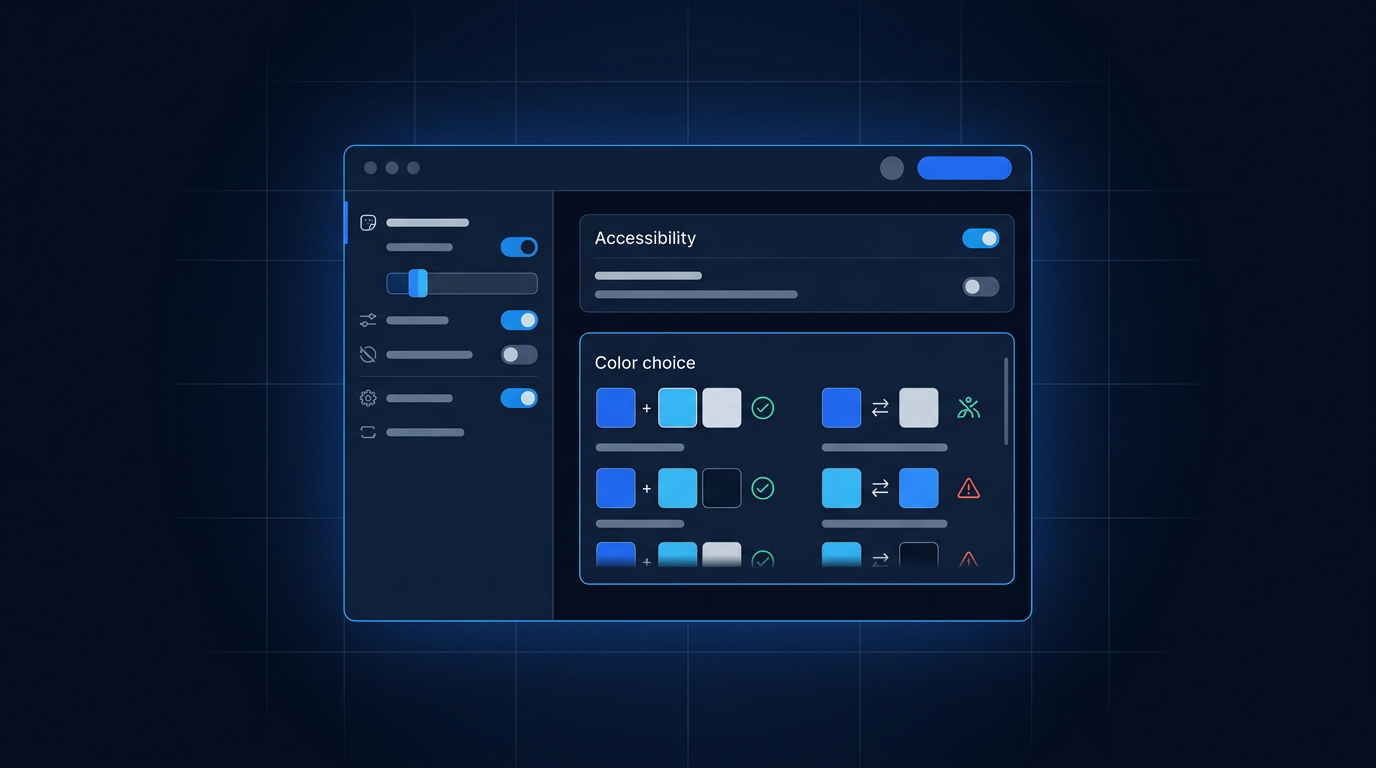
ADA Compliance for Product Images: Alt Text Guide
H2: Step 4 — Navigation, search, and filters without barriers
Your nav, search, and collection filters decide whether shoppers find what they need. Treat them like core UX.
- Global navigation:
- Use semantic nav. Menus open on keyboard and close with Escape. Arrows or Tab should move between items logically.
- Hover-only targets must also open on focus. Prevent off-screen focus loss in mega-menus.
- On-site search:
- Ensure the search input has a visible label or aria-label. Autocomplete suggestions are keyboard navigable and announced.
- Mark active suggestion and allow Enter to select. Escape should dismiss suggestions and return focus to input.
- Collection filters and sorting:
- Use checkboxes or radio groups instead of custom divs. Announce selection counts and applied filters.
- Update results with live region politely (aria-live=”polite”) or provide an explicit Apply button for predictable updates.
- Ensure infinite scroll doesn’t trap focus or reset the user’s position unexpectedly. Provide “Load more” buttons that are keyboard reachable.
- Breadcrumbs:
- Mark up as a nav with aria-label=”Breadcrumb”. Provide clear, ordered links back to categories. Make current page non-linked.
Best Accessibility Apps for Shopify Compared
H2: Step 5 — Forms, cart, and checkout clarity
Checkout friction hurts conversion and compliance. Make all forms robust, forgiving, and obvious.
- Labels and inputs:
- Use label for associations, not placeholders. Keep visible labels. Support autocomplete attributes (address-line1, postal-code, etc.).
- Radio and checkbox groups need group labels via fieldset and legend. Provide clear hints where format matters.
- Error handling:
- Validate inline, but only on blur or submit, not keystroke. Announce errors with aria-live=”assertive”. Move focus to the error summary on submit.
- Pair colors with icons and clear text. Provide example formats. Keep user input intact after errors.
- Cart interactions:
- Quantity steppers should be buttons with labels. Announce cart updates politely and confirm actions like remove/undo.
- Ensure upsell drawers and discount fields are reachable and labeled. Don’t steal focus without intent.
- Payment and third-party scripts:
- Audit express buttons (Shop Pay, PayPal) for focus order. Ensure iframes have title attributes and visible focus.
- Avoid CAPTCHAs that block assistive tech. Use accessible alternatives or offer an audio option.
H2: Step 6 — Automate testing: audits, monitors, and human checks
Automated tools catch 30–50% of issues fast. Human testing finds the rest. Combine both to keep your Shopify store ADA aligned.
Automated checks to run weekly:
- Browser extensions: axe DevTools, WAVE, and Lighthouse accessibility. Run on key templates and dynamic components.
- CI/CD checks: Use axe-core in your build pipeline if you maintain a custom theme or headless storefront.
- Color contrast scanners: Evaluate tokens and real components; check light/dark variants.
- Broken ARIA: Flag aria-* attributes that don’t match roles or reference missing IDs.
Manual checks to run before each release:
- Keyboard journey from homepage to order confirmation.
- Screen reader test for PDP media, variant change, , and cart updates.
- Zoom to 200% and 400% for reflow issues and off-canvas nav.
- Reduced motion preference on animations and transitions.
Document test cases and owners:
. Assign a QA owner for accessibility. Track regressions and fixes with severity ratings and dates.
Work through these points with each provider before you commit.
H2: Step 7 — Policies, statement, and training your team
Compliance survives only if people know what to do. Write it down and make it easy to follow.
- Accessibility statement:
- Publish a clear statement with WCAG 2.2 AA target, known limitations, contact method, and remediation timelines.
- Place it in the footer. Update after significant improvements. Include a date and version.
- Content governance:
- Create guardrails for alt text, heading levels, and link text. Provide examples for your product categories.
- Standardize image dimensions and focal points to maintain legible text overlays.
- Vendor and app selection:
- Add accessibility criteria to app procurement. Ask for WCAG conformance documentation and keyboard/screen reader demos.
- Prefer apps using native elements and accessible modals. Test in staging before production.
- Staff training:
- Train content creators on alt text, captions, and color contrast. Train developers on roles, ARIA, and testing.
- Create a 30-minute quarterly refresher. Share quick wins and recent regressions to keep focus high.
H2: Step 8 — Shopify-specific fixes and code snippets that matter
Some recurring Shopify patterns need targeted remediation. Apply these practical snippets and approaches carefully.
- Announcing Ajax cart updates:
- Add a visually hidden aria-live region. After , inject a confirmation message and keep focus on the triggering button or move it to the cart panel opener, not an arbitrary element.
- Drawer and modal focus trapping:
- Implement a focus trap that loops Tab within the container, restores focus on close, and sets aria-modal and aria-labelledby properly. Prevent background scroll for users relying on focus context.
- Collection filters live updates:
- If filters auto-update results, set an aria-busy state on the results region. On completion, announce the updated product count via an aria-live polite message. Provide a “Clear all” button reachable by keyboard.
- Accessible swatches:
- Use input type=”radio” with visually styled labels. Expose the color name in text. Reflect selected via aria-checked. Support arrow key navigation within the group.
- Headless/hydrogen considerations:
- Server-render headings and landmarks for quick SR announcement. Hydrate progressive enhancements only after initial paint. Avoid remounting focusable elements on state changes.
H2: Step 9 — Images, icons, and non-text content at scale
Scale alt text and icons responsibly without clutter or missed coverage.
- Bulk alt text approach:
- Start with product title + key differentiator template, then hand-edit bestsellers and top landing pages. Avoid generating generic alts for every image; decorative images should have empty alt.
- SVG icons:
- If the icon conveys meaning, give it a title or aria-label and role=”img”. If decorative, aria-hidden=”true”. Consider using text or a visible label on critical actions.
- Charts or size guides:
- Provide accessible tables with headers. Offer downloadable PDFs or text descriptions. For complex imagery, add long descriptions linked from the image.
H2: Step 10 — Media, motion, and time-based content
Avoid seizures, reduce motion issues, and ensure all media is perceivable.
- Carousels:
- No auto-rotate faster than 5 seconds. Include Pause, Previous, Next controls labeled and reachable. Announce slide changes politely.
- Video:
- Captions are non-negotiable. Add transcripts below the player. If content relies on visuals, provide audio description or equivalent text.
- Animated GIFs and background video:
- Respect . Provide a static fallback. Avoid flashing at frequencies 3–50 Hz to minimize seizure risk.
H2: Step 11 — Legal and risk perspective without the scare tactics
Lawsuits are rising across industries, but the real risk is lost revenue and reputation. A defendable posture includes:
- A dated, public statement and contact method for accessibility feedback.
- A remediation roadmap tied to WCAG 2.2 AA with documented progress.
- Evidence of ongoing monitoring, testing logs, and third-party audits.
- Rapid response procedures to user-reported issues, with acknowledged timelines.
This posture doesn’t guarantee immunity, but it demonstrates good-faith efforts aligned with recognized standards.
H2: Step 12 — Integrating AI and automation, safely
Automation helps maintain compliance at scale, but use it thoughtfully.
- AI-generated alt text:
- Use as a draft. Review for accuracy and avoid non-descriptive fluff. Prioritize manual review on hero and bestseller images.
- Automated captioning:
- Start with auto-captions; always human-edit. Ensure proper punctuation, speaker identification, and non-speech sounds where relevant.
- Monitoring bots:
- Schedule weekly scans of key templates. Alert on contrast regressions, missing labels, or broken landmarks after theme updates.
- Conversational assistants:
- Ensure chat widgets are keyboard accessible, labeled, and don’t hijack focus. Provide a text-only fallback and an email contact alternative.
H2: Step 13 — Auditing apps and third-party widgets
Every installed app can help or hurt accessibility. Vet them rigorously.
Pre-install buyer guide
Work through these points with each provider before you commit.
- Keyboard operability, focus management, ARIA correctness, and SR labels. Test on mobile and desktop with a screen reader.
- Inspect iframes for title attributes. Confirm color contrast and text size. Ensure no forced focus on load.
- Overlay widgets:
- Accessibility widgets can help with minor adjustments and discovery of issues. They do not replace remediation in code. Use them as supplemental tools plus monitoring and reports.
- Reviews and UGC:
- Ensure forms are labeled. Star ratings need text equivalents. Lazy-loaded content must become focusable and announced when injected.
H2: Step 14 — Data model and content operations for ongoing compliance
Make compliance part of content creation, not a last-mile fix.
- Product metadata fields:
- Add metafields for alt text guidance, video captions links, and model descriptions. Surface them in the admin for content teams.
- Content QA:
- Require accessibility checks in product launch SOPs. Include focused checkboxes: alt present, captions present, headings valid, buttons descriptive.
- Seasonal campaigns:
- Preflight all campaign landing pages and banner text on images. Test contrasting variants for light/dark backgrounds.
H2: Step 15 — Monitoring, reporting, and who owns what
Assign owners and track measurable KPIs.
- Owners:
- Developer: components and templates.
- UX/content: alt text, captions, statements.
- QA: audits and release checks.
- Ops: vendor and app vetting.
- KPIs:
- Critical issues across core flows, SLAs, coverage of alt text on active SKUs, and contrast pass rate on tokens.
- Reporting:
- Monthly report with trend lines, new regressions, user-reported issues, and prioritized backlog.
H2: Tools and services: scanners, apps, and audits to consider
A balanced stack includes scanners, remediation apps, and professional audits. Combine them for coverage and ROI.
- Automated scanners:
- axe DevTools, WAVE, Lighthouse. Useful for quick passes and CI gates. They surface contrast, missing labels, roles, and heading structure issues.
- Shopify apps (monitoring and adjustments):
- Choose apps with proven support, transparent pricing, and remediation guidance. Look for features like automated scanning, issue logs, and ARIA fixes.
- Professional audits:
- Schedule annual or semiannual audits for templates and user flows. Ensure the vendor tests with screen readers and real users. Request a prioritized remediation roadmap and re-test.
- Content services:
- Caption and transcript vendors for video libraries. Editorial services to review alt text at scale.
H2: Step-by-step implementation plan (90 days)
Week 1–2: Discovery and triage
- Run automated scans on homepage, PLP, PDP, cart, and checkout.
- Manual keyboard and screen-reader checks on checkout flow.
- Fix focus indicators, keyboard traps, alt text on top SKUs, and core contrast issues.
Week 3–4: Theme and navigation
- Implement skip link, landmarks, heading corrections, and focus order improvements.
- Fix menus, search autocomplete, and collection filters’ ARIA and keyboard behavior.
Week 5–6: Media and forms
- Standardize product media alt guidelines. Add captions to high-traffic videos.
- Improve form labels, error summaries, and live regions. Audit payment iframes.
Week 7–8: Apps and third parties
- Vet installed apps. Replace or remediate problematic widgets. Add automated monitoring.
Week 9–10: Policies and training
- Publish accessibility statement. Train content and dev teams. Add SOP checklists.
Week 11–12: Audit and stabilize
- Commission a focused audit on priority templates. Fix critical issues. Establish monthly reporting and ownership.
H2: Common pitfalls and how to avoid them
- Relying on overlays alone: Widgets can’t fix broken structure. Remediate code first; use widgets for assistive adjustments.
- Removing outlines: Aesthetic choices shouldn’t erase focus visibility. Customize, don’t disable.
- Placeholder-as-label: Placeholders disappear. Keep visible labels and associate them properly.
- Color-only signals: Always pair with text or icons. Test with grayscale to catch misses.
- Infinite scroll chaos: Provide “Load more” or maintain logical focus and announcements.
- ARIA misuse: ARIA is powerful but fragile. Prefer native semantics first.
H2: Accessibility ROI: conversion, SEO, and support deflection
Accessible sites convert better because clarity helps everyone. Contrast, obvious labels, and predictable flows reduce drop-off on mobile. Clear errors and inline guidance reduce failed checkouts and support tickets. Search engines benefit from structured, well-labeled content and transcripts. Accessibility investments typically pay back through recovered conversions and lower service costs.
H2: Maintenance cadence and release discipline
Adopt a light but strict rhythm:
- Before every release: Run automated scans and a 10-minute keyboard journey on key flows.
- Weekly: Check monitoring dashboards, fix new issues, and review app updates.
- Monthly: Report on KPIs, close high-severity issues, and retrain where regressions recur.
- Quarterly: Sample screen-reader tests on mobile and desktop. Revalidate statement and training materials.
H2: Shopify Plus and internationalization considerations
- B2B portals: Gateways and account pages need the same rigor. Validate custom fields and pricing tables for SR and keyboard users.
- Markets and languages: Ensure alt text, labels, and ARIA strings are localized. Right-to-left languages need mirrored focus order and icons.
- Performance vs. accessibility: Lazy-load responsibly. Avoid skeleton screens that steal focus. Keep server-rendered headings and landmarks.
H2: Measuring success without guesswork
Define what “good” looks like:
- 0 critical blockers on checkout and flows.
- 95%+ pass rate on contrast and alt coverage for active SKUs.
- < 7 days mean time to remediate high-severity issues.
- Support tickets with accessibility tags trending down .
Track with dashboards, issue trackers, and periodic user testing to validate real-world gains.
H2: Recommended Shopify ADA compliance stack (curated)
- Scanners and audits:
- axe DevTools and WAVE for page-level checks.
- Lighthouse accessibility scores as a lightweight signal.
- Professional audits for deep dives and user testing.
- Shopify apps:
- Accessibility-focused apps with transparent reports, keyboard-safe components, and live monitoring.
- Prefer vendors offering remediation guidance and responsive support channels.
- Content workflow:
- Captioning services for product videos.
- Editorial QA for alt text on seasonal campaigns.
- Team enablement:
- Training modules for content and devs.
- Internal SOPs and checklists pinned in your CMS or project tools.
H2: Accessibility statement essentials (with structure)
Include these elements in your published statement:
- Commitment: Target WCAG 2.2 AA and continuous improvement.
- Scope: Site areas covered, including mobile experience and account pages.
- Contact: Dedicated email or form with expected response time.
- Known gaps: Briefly list current limitations and timelines for fixes.
- Date/version: Show recency. Update after major changes.
- Third-party content: Acknowledge app and embed dependencies, with mitigation steps.
H2: Building for assistive technologies: pragmatic tips
- Screen readers:
- Keep headings and landmarks clean. Announce dynamic changes with live regions. Avoid overusing aria-live, which can create noise.
- Voice control:
- Ensure actionable elements have clear, unique visible names. Align accessible name and visible label so “Click Add to Cart” works.
- Keyboard and switch:
- Maintain logical tab order. Provide large, well-spaced targets. Avoid hover-only elements for critical actions.
H2: Testing matrix you can copy
Platforms:
- Desktop: Windows + NVDA/JAWS, macOS + VoiceOver.
- Mobile: iOS + VoiceOver Safari, Android + TalkBack Chrome.
Browsers:
- Chrome, Safari, Firefox, Edge.
Scenarios:
- New user browse to checkout.
- Returning user applying discount and editing address.
- Variant selection and media zoom on PDP.
- Search with autocomplete and filter application on PLP.
States:
- 200% zoom, reduced motion on, dark mode if supported.
Pass criteria:
- No traps, clear focus, announced changes, preserved inputs, and successful checkout.
H2: Data privacy and cookie banners
Consent banners often cause accessibility issues:
- Provide visible focus, Escape to close, and labeled buttons. Avoid deceptive color contrast on “Reject” vs. “Accept”.
- Ensure tab order stays within the banner until a choice is made. Announce banner presence on load without stealing focus from screen readers unnecessarily.
H2: Accessibility and performance: allies, not enemies
Clean semantics, reduced DOM complexity, and native elements improve both accessibility and speed. Preload fonts responsibly, avoid layout shifts that confuse focus, and lazy-load non-critical media with placeholders that don’t trap focus. Treat CLS and focus integrity as a combined goal.
H2: Proof of work: documenting compliance
Maintain a lightweight evidence trail:
- Issue tracker with before/after screenshots and commit references.
- Audit reports and re-test confirmations.
- Release notes calling out a11y fixes and owners.
- Training attendance and SOP version history.
This record helps internal accountability and demonstrates genuine efforts if challenged.
H2: Should you use an accessibility widget?
Widgets can provide user preferences (contrast, text size) and flag issues, but:
- They cannot fix missing labels, bad DOM order, or broken keyboard logic.
- Use them as a supplement to code-level remediation and continuous monitoring.
- Pick solutions with transparent reports, real human support, and clear scoping of what they change.
H2: Human-centered win: customer support integration
Give users a fast path to report issues:
- Add “Accessibility Help” in footer and support. Route to a trained agent or team.
- Offer multiple channels: email, form, and phone/TTY if available.
- Log, triage, and respond with an ETA. Close the loop with the user when fixed.
H2: Final readiness checklist (print this)
- Structure:
- Single H1; correct heading hierarchy; landmarks set.
- Navigation:
- Skip link; keyboard-operable menus; clear focus.
- Media:
- Alt text complete on active SKUs; captions on videos; reduced motion honored.
- Forms:
- Labels present; error summaries; inputs preserved; autocomplete set.
- Commerce:
- Add-to-cart and checkout keyboard/SR-friendly; cart updates announced.
- Monitoring:
- Weekly automated scans; pre-release manual checks; owners assigned.
- Policy:
- Public statement; feedback channel; documented roadmap.
WCAG 2.2 AA Ecommerce → buyer guide
Work through these points with each provider before you commit.
H2: Compare top Shopify ADA apps (features, trials, support)
Choosing the right app can accelerate fixes and enforce standards across your theme and content. Prioritize apps that provide actionable reports, safe code injections, and strong support SLAs. Consider free trials to evaluate UI impact, keyboard coverage, and regression monitoring during your next release cycle.
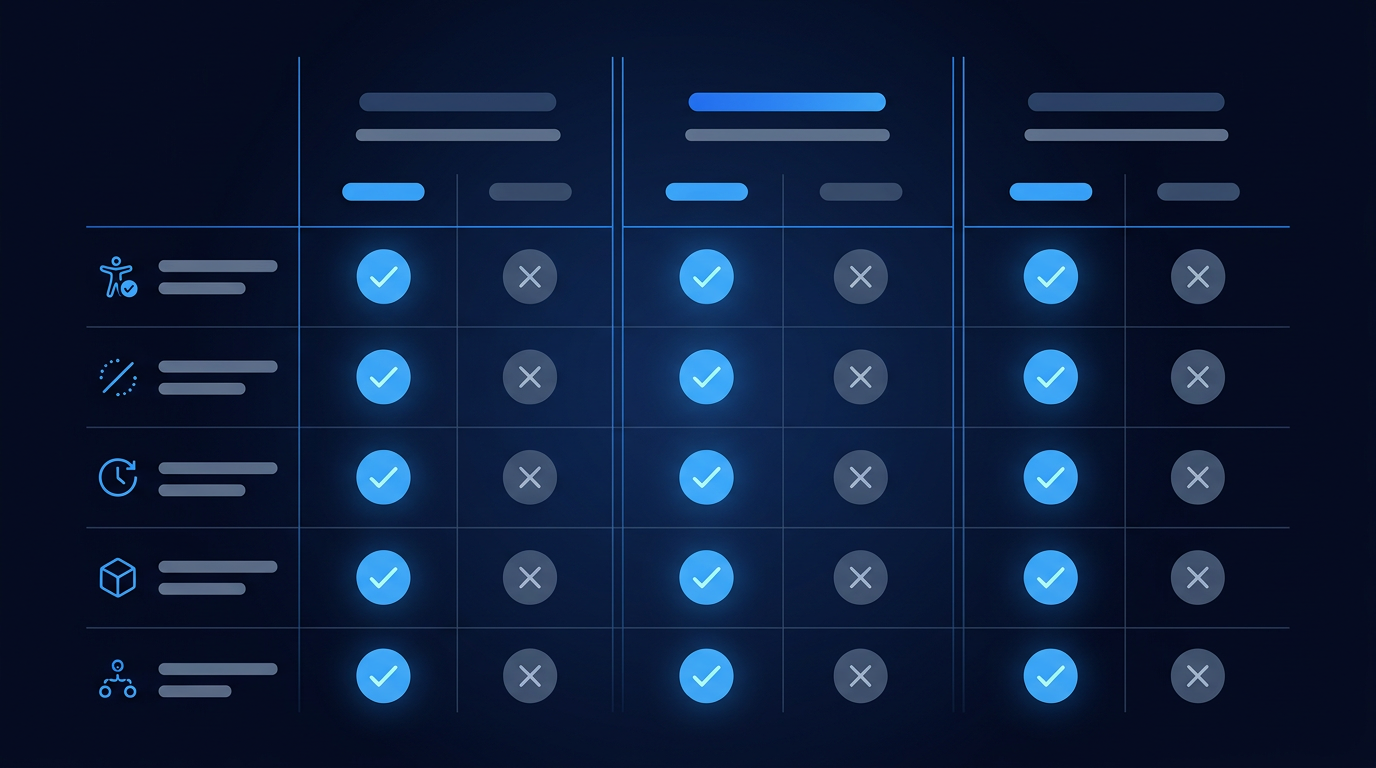
Comparison snapshot
| Capability | Automated Scan | Live Monitoring | Keyboard-Safe Components | Alt Text Assist | Trial Length | Support SLA |
|---|---|---|---|---|---|---|
| App A | Yes | Yes | Yes | Yes | 7–14 days | Priority email/chat |
| App B | Yes | Limited | Yes | No | 7 days | Email within 24–48h |
| App C | Yes | Yes | Partial | Yes | 14 days | Dedicated manager |
Use this table as a rubric. Test with your theme and apps before committing, and verify that uninstall leaves no lingering code.
Best Accessibility Apps for Shopify Compared
H2: Shopify-specific edge cases to test
- Sticky bars: Ensure they are keyboard reachable and don’t duplicate IDs with the main button.
- Promo banners: Close buttons must be labeled and have strong focus styles. Avoid trapping focus behind overlays.
- Country/region selectors: Dropdowns need proper labeling, searchability, and announcement of selection changes.
- PDP tabs vs. accordions: Ensure ARIA-controls and expanded states are accurate and toggles are buttons, not links.
H2: Accessibility for email capture and popups
- Timing and intent: Delay popups until user intent is clear, or provide inline forms. Avoid immediate focus hijacks.
- Structure: Use role=”dialog” with aria-modal and a labelledby title. Trap focus inside and return on close.
- Keyboard: Escape closes; Tab cycles; visible focus maintained. Buttons are real buttons with names matching visible labels.
H2: International shipping and forms complexity
- Address forms: Localize labels, examples, and autocomplete tokens. Allow freeform address lines to avoid rigid patterns.
- Phone fields: Accept varied formats. Don’t block paste. Provide clear error messages.
- VAT/tax IDs: Label and explain requirements. Provide examples and links to guidance pages where applicable.
H2: Testing real devices beats emulators
Emulators miss browser quirks, on-screen keyboards, and OS-level assistive settings. Test on at least one iPhone and one Android device with screen readers enabled. Validate touch targets, focus order, modals, and dynamic content. Watch for on-screen keyboard overlap with important inputs or buttons.
H2: Governance for headless Shopify builds
- Routing and focus: On client-side route changes, set focus to the main heading or region. Announce page changes via live regions.
- Skeletons and loaders: Avoid spinners that loop without labels. Provide “Loading products…” with polite announcements.
- Links vs. buttons: Use links for navigation, buttons for actions. Keep accessible names consistent.
H2: Beyond compliance: inclusive content and imagery
- Photos and models: Represent diverse ages, abilities, and body types. Provide clear, candid product context.
- Language: Avoid jargon and tiny text in graphics. Use plain language in policies and FAQs.
- Size guides: Offer multiple measurement systems and simple steps. Provide downloadable or printer-friendly versions.
H2: Ongoing education: where to learn more
- WCAG 2.2 Quick Reference: Criteria, techniques, and understanding docs arranged by role.
- WAI-ARIA Authoring Practices: Patterns for menus, dialogs, tabs, and disclosures.
- Browser and AT release notes: Stay aware of changes in Chrome, Safari, NVDA, VoiceOver.
FAQ
H3: What does ADA compliance mean for a Shopify store? ADA compliance means your store is accessible to people with disabilities, mapped to WCAG 2.2 AA criteria. It covers perceivable content, operable interfaces, understandable interactions, and robust code. On Shopify, that translates to semantic markup, keyboard operability, screen-reader support, color contrast, error handling, captions, and ongoing monitoring across themes, apps, and content.
H3: Can I make my Shopify store ADA compliant without a developer? You can address many issues through the theme editor and content practices: alt text, headings, descriptive links, captions, and color tokens. However, keyboard traps, ARIA fixes, focus management, and complex components often require developer changes. Pair no-code improvements with periodic audits and a developer pass on navigation, modals, and forms.
H3: Are accessibility overlays enough for ADA compliance on Shopify? No. Overlays can offer user preferences and flag issues but can’t repair broken semantics, focus order, or missing labels. Relying on widgets alone leaves legal and usability gaps. Use them as supplemental tools alongside code remediation, weekly monitoring, and human testing with keyboards and screen readers.
H3: How often should I test my store for accessibility issues? Run automated scans weekly and before every release. Perform manual keyboard and screen-reader checks on core flows monthly or when major changes ship. Schedule a professional audit at least annually or biannually, especially before peak seasons. Document results, assign owners, and track as a KPI.
H3: What are the fastest fixes to improve ADA compliance today? Restore visible focus outlines, fix keyboard traps in menus or modals, add or correct alt text for top-selling products, raise contrast on buttons and small text, and ensure form labels and error summaries are present. Add a skip link, publish an accessibility statement, and set aria-live regions for cart updates.
H3: How do I handle product videos and motion for accessibility? Provide accurate captions and transcripts for all videos. Avoid autoplay with sound; start muted if necessary. Respect by disabling non-essential animations. If important visuals aren’t described in audio, add audio descriptions or equivalent text near the video. Ensure controls are labeled and keyboard accessible.
How to Write an Accessibility Statement (Templates)
Conclusion
Accessibility on Shopify is a continuous practice, not a checkbox. Start with the critical flows, fix theme structure, and put monitoring in place. Train your team, publish your statement, and schedule regular audits. The next step: run a quick audit on your homepage, PDP, and checkout to create a prioritized fix list for this sprint.

box on the provider’s official site — pricing and terms are updated there first.
How to Choose the Best How to Make a Shopify Store Ada Compliant
- W3C WCAG 2.2 Quick Reference
- WAI-ARIA Authoring Practices Guide
- Shopify Theme Development Docs
- axe DevTools by Deque
- WebAIM WAVE Accessibility Tool
How How to Make Your Shopify Store ADA Compliant Work
How How to Make Your Shopify Store ADA Compliant Work is where most readers comparing How to Make Your Shopify Store ADA Compliant lose money. The details below are the ones that change what you actually pay and what you actually get. Work through them in order before you shortlist how to make a shopify store ada compliant.
- What How to Make Your Shopify Store ADA Compliant includes as standard, and what is quietly treated as an extra.
- The real annual cost once every recurring charge is added together.
- The limits, caps and exclusions that decide whether a plan works in your case.
- How quickly you can switch if how to make a shopify store ada compliant stops fitting your needs.
Compare at least three options side by side using the same figures. If two options look identical on price, choose the one with the clearer terms and the easier exit. That single habit removes most of the risk from choosing how to make a shopify store ada compliant.
What to Compare in How to Make Your Shopify Store ADA Compliant
What to Compare in How to Make Your Shopify Store ADA Compliant is where most readers comparing How to Make Your Shopify Store ADA Compliant lose money. The details below are the ones that change what you actually pay and what you actually get. Work through them in order before you shortlist how to make a shopify store ada compliant.
- What How to Make Your Shopify Store ADA Compliant includes as standard, and what is quietly treated as an extra.
- The real annual cost once every recurring charge is added together.
- The limits, caps and exclusions that decide whether a plan works in your case.
- How quickly you can switch if how to make a shopify store ada compliant stops fitting your needs.
Compare at least three options side by side using the same figures. If two options look identical on price, choose the one with the clearer terms and the easier exit. That single habit removes most of the risk from choosing how to make a shopify store ada compliant.
Costs, Fees and Out-of-Pocket Limits
Costs, Fees and Out-of-Pocket Limits is where most readers comparing How to Make Your Shopify Store ADA Compliant lose money. The details below are the ones that change what you actually pay and what you actually get. Work through them in order before you shortlist how to make a shopify store ada compliant. Write down your own numbers as you go, because the right answer depends on your situation rather than on a generic ranking.
- What How to Make Your Shopify Store ADA Compliant includes as standard, and what is quietly treated as an extra.
- The real annual cost once every recurring charge is added together.
- The limits, caps and exclusions that decide whether a plan works in your case.
- How quickly you can switch if how to make a shopify store ada compliant stops fitting your needs.
Compare at least three options side by side using the same figures. If two options look identical on price, choose the one with the clearer terms and the easier exit. That single habit removes most of the risk from choosing how to make a shopify store ada compliant.
Coverage, Networks and Everyday Access
Coverage, Networks and Everyday Access is where most readers comparing How to Make Your Shopify Store ADA Compliant lose money. The details below are the ones that change what you actually pay and what you actually get. Work through them in order before you shortlist how to make a shopify store ada compliant. Write down your own numbers as you go, because the right answer depends on your situation rather than on a generic ranking.
- What How to Make Your Shopify Store ADA Compliant includes as standard, and what is quietly treated as an extra.
- The real annual cost once every recurring charge is added together.
- The limits, caps and exclusions that decide whether a plan works in your case.
- How quickly you can switch if how to make a shopify store ada compliant stops fitting your needs.
Compare at least three options side by side using the same figures. If two options look identical on price, choose the one with the clearer terms and the easier exit. That single habit removes most of the risk from choosing how to make a shopify store ada compliant.
FAQ
What is the best how to make a shopify store ada compliant for most people?
There is no single winner. The best how to make a shopify store ada compliant is the option whose total annual cost, coverage limits and access match how you will actually use it. Shortlist three that meet your must-haves, price them with identical assumptions, then pick the one with the clearest terms.
What does How to Make Your Shopify Store ADA Compliant usually include?
Most options bundle the core benefit plus a small set of extras. Read the summary document rather than the marketing page: it lists exactly what is standard, what is optional and what is excluded. Anything described as available or eligible is normally conditional, so confirm it in writing before you commit to how to make a shopify store.
What should you compare before you commit?
Compare total yearly cost, not the headline price. Then compare limits, exclusions, waiting periods and how easily you can leave. Put the three finalists in one table with the same assumptions for each, and confirm every claimed benefit in the official documents before you sign up for how to make a shopify store ada compliant.
The Bottom Line
Choosing how to make a shopify store ada compliant comes down to three numbers: total annual cost, the limits that apply to you, and how easily you can change your mind. Get those on one page and the shortlist usually writes itself. Next step: list your two or three finalists, price each one with the same assumptions, and confirm every benefit in the official documents before you enrol.
Sources
AtlasProfitAI publishes independent guides for small-business teams. Read how we choose topics and check our work in our research methodology and advertising disclosure.